Why CRM migrations actually fail
You have chosen a new CRM, and now the real work starts: moving years of customer data into it without losing anything that matters. This is the part where good projects quietly go wrong. The export button is easy. Getting clean, connected, trustworthy data into the new system is the hard part, and it is where teams lose deals, history, and confidence in the tool they just paid for.
This CRM data migration checklist is a practical, vendor-neutral plan. It works whether you are moving off spreadsheets, switching between platforms, or replacing a CRM that no longer fits. The order matters more than any single tool, so follow it end to end.
Migrations rarely fail at the import step. They fail earlier, in decisions made before anyone touches the new system. The two most common causes are dirty data and wrong load order. Teams plan to clean up later and then drown in duplicate contacts, deals attached to the wrong company, and activities with no record to sit on. Or they load records in whatever order the export happened to produce, which breaks the links between objects and leaves orphaned data the team cannot trust.
The fix is not a better export tool. It is a sequence: clean before you move, map deliberately, load in the right order, and validate before you commit. Everything below follows that sequence.
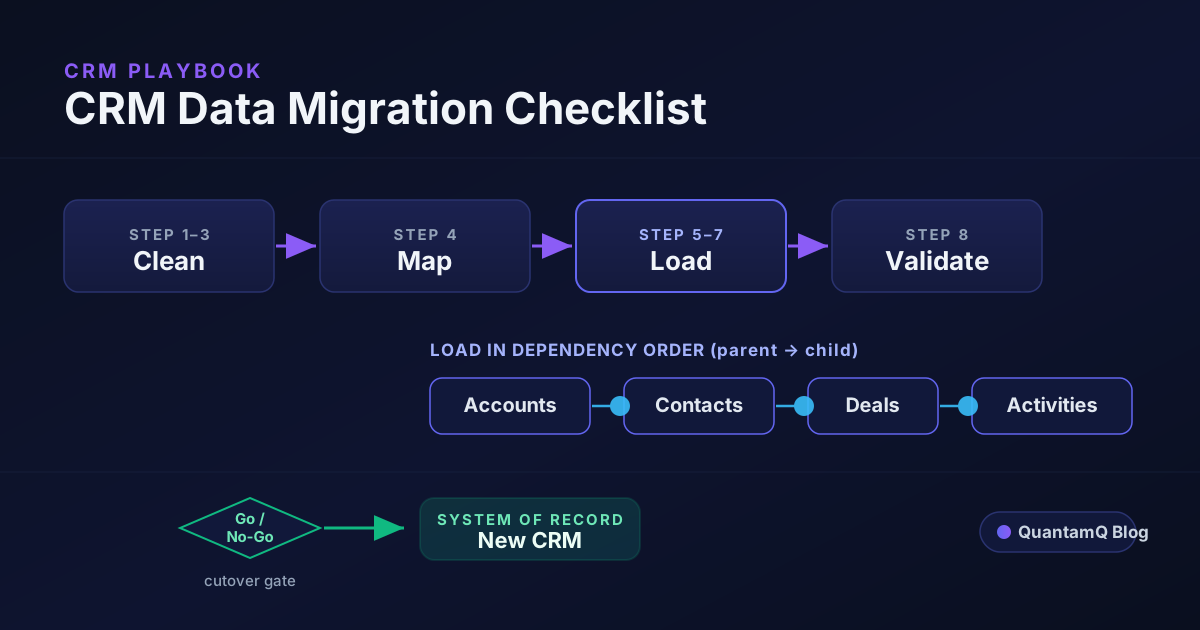
Step 1–3: Audit, back up, and clean first
The first three steps happen entirely in the old system, before the new CRM sees a single record.
Step 1 — Audit what you actually have. Export the source data and look at it honestly. How many accounts, contacts, deals, and activities exist? Which fields are filled in, which are empty, and which are full of free-text guesswork? Identify the records you genuinely need versus the dead leads and stale contacts you can leave behind. Migrating less, but cleaner, almost always beats migrating everything.
Step 2 — Back up the full source. Take a complete, dated export before you change anything. This is your safety net: if a load goes wrong, you can start again from a known-good copy. Keep the old system live and read-only until the new one is validated and in use.
Step 3 — Clean and deduplicate. This is the step teams skip and later regret. Consolidate your exports and remove duplicates by email, domain, and company name. Standardise formats — phone numbers, country names, status values — so they import consistently. Decide how to merge records that describe the same customer twice. Bad data carried into a new CRM does not get better; it becomes the new source of truth and quietly erodes trust in the system.
Clean in the source or in a staging spreadsheet, not during the import. Cleaning mid-migration is exactly where projects stall.
Step 4: Map fields and objects
Data mapping is where you decide how each field in the old system lands in the new one. Done well, it is invisible. Done badly, it is the reason a salesperson cannot find a phone number three weeks after go-live.
Build a simple mapping document — a spreadsheet is fine — with one row per source field:
- Source object and field name.
- Target object and field name in the new CRM.
- Any transformation needed (split a full name into first and last, convert a status label, reformat a date).
- A note for fields with no clean home, so nothing disappears silently.
Step 5: Load in dependency order
This is the most technical step and the one most checklists underplay. CRM objects form a dependency graph. A deal points to an account and a contact. An activity points to a deal. An attachment points to an activity. If you load a child record before its parent exists in the target, the import either fails or creates an orphan with a broken link.
So load parents before children. First make sure users and owners exist in the target CRM if your records reference them. Then load the business objects in this sequence:
- Accounts / companies — the top-level records everything else attaches to.
- Contacts next — linked to the accounts that now exist.
- Deals / opportunities — linked to accounts and contacts.
- Cases / tickets — linked to accounts and contacts.
- Activities, notes, and attachments last — linked to the records above.
Step 6–7: Test with samples, then full run
Do not move everything in one attempt and hope. Run trial migrations first.
Step 6 — Test migrations on samples. Take a few representative slices of data — a handful of accounts with their full chain of contacts, deals, and activities — and run them through the whole process. Each trial run shows you where the mapping is wrong, where formats break, and where the load order needs adjusting. Fix the process, then run another sample. A couple of focused test rounds save you from discovering a systemic error after you have loaded fifty thousand records.
Step 7 — Run the full migration. Once the samples come through clean and the mapping holds, run the complete load in the dependency order above. Schedule it for a quiet window, freeze changes in the old system during the run, and watch for rate limits and timeouts on large objects. If the platform throttles bulk imports, batch the load rather than forcing it through in one push.
Step 8: Validate before you cut over
Treat validation as a go or no-go gate, not a formality. The question is simple: does the new CRM match the source you trusted? Check the following against the backup from Step 2:
- Record counts by object — accounts, contacts, deals, activities — line up with the source, allowing for records you deliberately left behind.
- Relationships are intact — sample deals show the right account and contact; activities sit on the right records.
- Key fields are populated — the fields your team relies on every day are present and correctly formatted.
- Money and dates are right — deal values, close dates, and stages survived the transfer without silent conversion errors.
- Nothing duplicated on load — the import did not re-create records that already existed.
Step 9–10: Cut over and drive adoption
A clean migration still fails if no one uses the new system with confidence.
Step 9 — Cut over. Once validation passes, make the new CRM the system of record and switch off writes to the old one. Reconnect integrations — email, calendar, accounting, support, marketing — and confirm each one reads and writes the right records. Keep the old system available read-only for a defined period as a reference, then retire it on a planned date.
Step 10 — Train and drive adoption. Give each team role-specific views, short playbooks for the handful of tasks they do daily, and a named person who can answer questions and gather feedback in the first weeks. Adoption is where the value is realised or lost. A technically perfect migration that the sales team avoids is still a failed project.
The checklist at a glance
Use this as the working summary:
- Audit the source data and decide what is worth moving.
- Back up a complete, dated copy of the source.
- Clean and deduplicate before the move, not during it.
- Map every field to a target, with a decision recorded for fields that do not fit.
- Load in dependency order: users or owners where needed, then accounts, contacts, deals, cases, activities.
- Preserve original IDs so relationships and traceability survive.
- Test on representative samples and fix the process before the full run.
- Run the full migration in a quiet window with the source frozen.
- Validate counts, relationships, and key fields against the backup — a go or no-go gate.
- Cut over, reconnect integrations, and train each team for adoption.
Frequently asked questions
What is a CRM data migration checklist?
It is the ordered set of steps that moves customer data from an old system into a new CRM without loss or corruption: audit and back up the source, clean and deduplicate, map fields, load objects in dependency order, test with samples, validate against the source, then cut over and train the team.
In what order should I load CRM records?
Load parent objects before child objects. The usual sequence is accounts or companies first, then contacts, then deals or opportunities, then cases, then activities and attachments. A deal points to an account and contact, and an activity points to a deal — load a child before its parent exists and you get a failed import or an orphaned record.
Should I clean the data before or during the migration?
Before. Cleaning during the move is where most migrations drown in duplicates and broken links. Consolidate exports, remove duplicates by email, domain, and company name, and fix formatting in the source or a staging file first. Bad data carried into a new CRM stays bad and erodes trust in the system.
How do I migrate a CRM without data loss?
Back up the full source first, run trial migrations on representative samples, reconcile record counts and key fields against the source after each run, and keep the old system read-only until validation passes. Treat the final validation as a go or no-go gate rather than assuming the import worked.
How long does a CRM data migration take?
It depends on data volume, data quality, and how many integrations connect to the CRM. A small, clean dataset can move in days; a large account with messy data, custom objects, and live integrations can take weeks. Most of the time goes into cleaning and mapping, not the import itself.